All-in-One Planner vs Separate Apps in 2026: Which Fits You?
Compare a one-place planner with a five-app household setup, including current annual prices, trade-offs, and a one-week test for choosing.
By Ultimate Life Organizer by Cosmo Suite · Editorial policy
Published · 8 min read
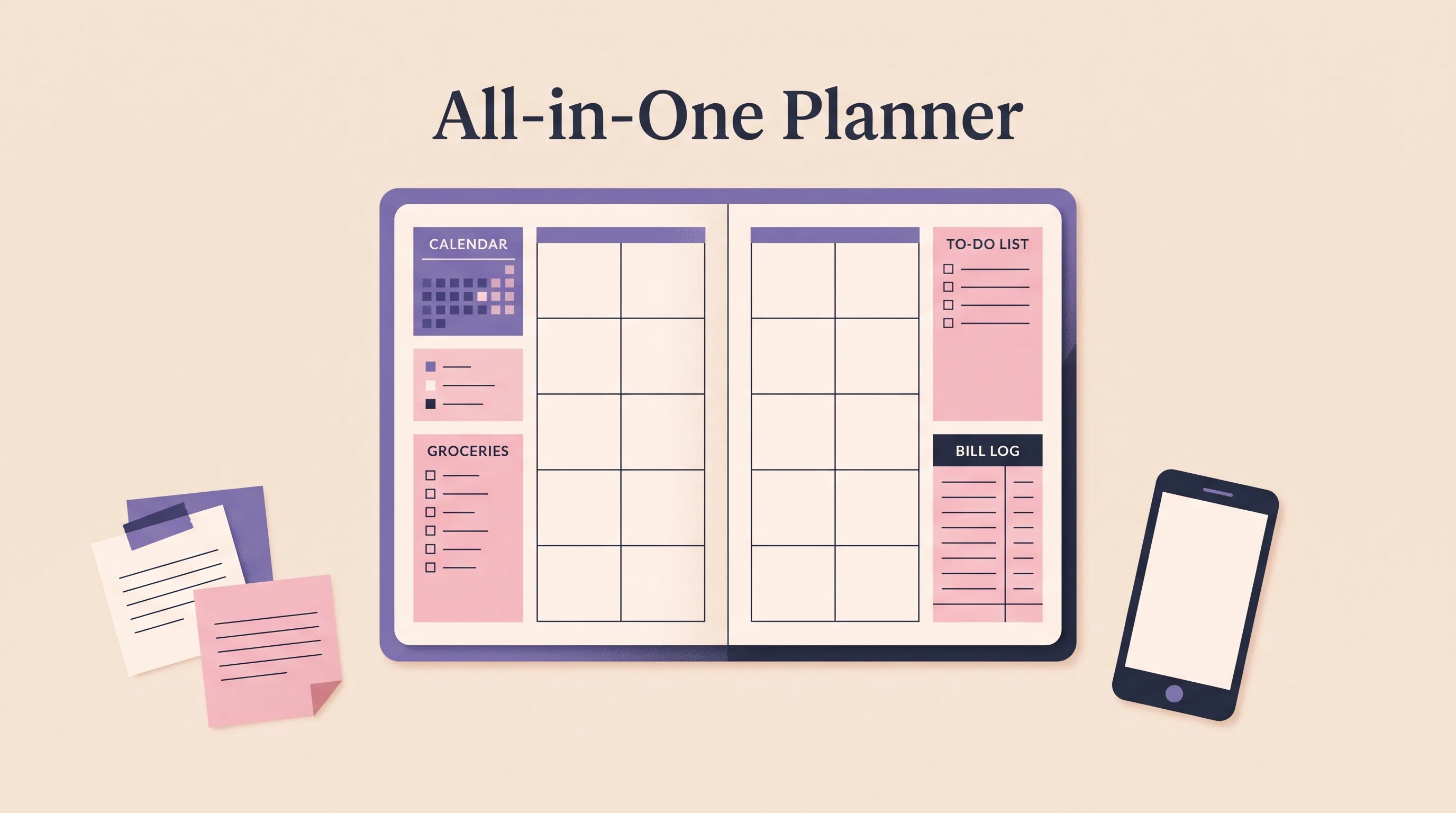
An all-in-one planner keeps several parts of your week in one place. It might be a paper book, a group of apps, a Notion workspace, or a spreadsheet. The useful choice depends on what you need to review together and what still needs a dedicated tool.
The short answer: a single planner can bring several weekly checks together, while separate apps offer focused tools for each job. A sample five-app setup for budget, habits, tasks, meals, and calendar costs $213.98 per year using selected paid plans below. This is a price illustration, not an equivalent feature comparison. Choose based on what you use and what needs alerts or sharing.
At a glance
- Choose paper if writing by hand helps you plan.
- Choose apps for reminders, shared lists, and mobile capture.
- Choose a spreadsheet or workspace when you want categories and summaries together.
- Test one ordinary week before moving all your records.
All-in-One Planners at a Glance
The best format is the one that suits the work you repeat. Compare each option by what it can hold and the upkeep it asks of you.
| Format | Useful when | Check before choosing | Best for |
|---|---|---|---|
| Paper planner | You think by writing and want a visible week | Rewriting recurring items and doing totals by hand | A writing-first routine |
| Separate apps | You need alerts, sharing, or quick phone entry | Which app holds the current version of each detail | People who rely on mobile tools |
| Notion workspace | You want flexible pages and databases | Setup and ongoing maintenance | People who enjoy shaping a workspace |
| Spreadsheet planner | You want lists, dates, and summaries in a file | Screen size, formulas, and how tabs connect | Weekly reviews across several categories |
| Ready-made planner | You want a structure to start from | Included sections, app compatibility, and missing features | People who prefer less initial setup |
What does a five-app setup cost?
For a simple household comparison, take one separate app for each job. The prices below are the vendors' listed US annual prices checked on 5 November 2026. Free plans may be available, and prices can vary by region, tax, or billing choice.
| Weekly job | Example app and plan | Listed annual price |
|---|---|---|
| Budget | YNAB, annual plan | $109.00 |
| Habits | Habitify Premium, annual | $29.99 |
| Tasks | Todoist Pro, annual billing | $60.00 |
| Meals and groceries | AnyList Complete, household annual | $14.99 |
| Calendar | Google Calendar with a personal Google Account | $0 |
| Example total | Four paid plans and one free calendar | $213.98 per year |
The total is arithmetic from the YNAB, Habitify, Todoist, and AnyList price pages. Google describes personal-account access to Calendar on its product page. This example assumes someone chooses those paid plans; it does not mean every household needs them. Free tiers and different combinations change the total.
The Ultimate Life Organizer bundle is $9 once. That is a different kind of product, so the prices do not show feature parity: separate apps can provide alerts, syncing, or shared updates, while the bundle is a set of spreadsheets and a Notion template. Use the comparison to count the tools you actually maintain, then check current prices and free options before subscribing.
You can combine formats. A shared calendar may handle appointments while a spreadsheet holds meal plans and recurring household records. The planner can sit alongside those tools and give you one place for a weekly review.
What does an all-in-one planner include?
An all-in-one planner is a system that brings several planning jobs into a place you check regularly. Check its sections and how they connect. The label alone does not tell you whether it includes reminders, sharing, or automatic updates.
Each format handles planning differently. A paper planner gives you pages to write in. Apps can put dates and alerts on your phone. Notion lets you build pages and databases. A spreadsheet stores information in rows, columns, and tabs, with formulas when you want calculations. Google's Sheets function guide explains how formulas automate calculations. Microsoft describes Excel calendar templates as layouts users can adapt.
A planner can hold several categories without connecting them. A file with separate tabs for tasks, bills, and meals may be convenient, but each tab can still require manual entry. Look for clear links between information, and test them before you depend on totals or calendars.
Which parts of your week should live together?
Group details that you review at the same time, then leave time-sensitive or shared items in the tool that handles them best. This keeps the planner useful without turning it into a second copy of every app you own.
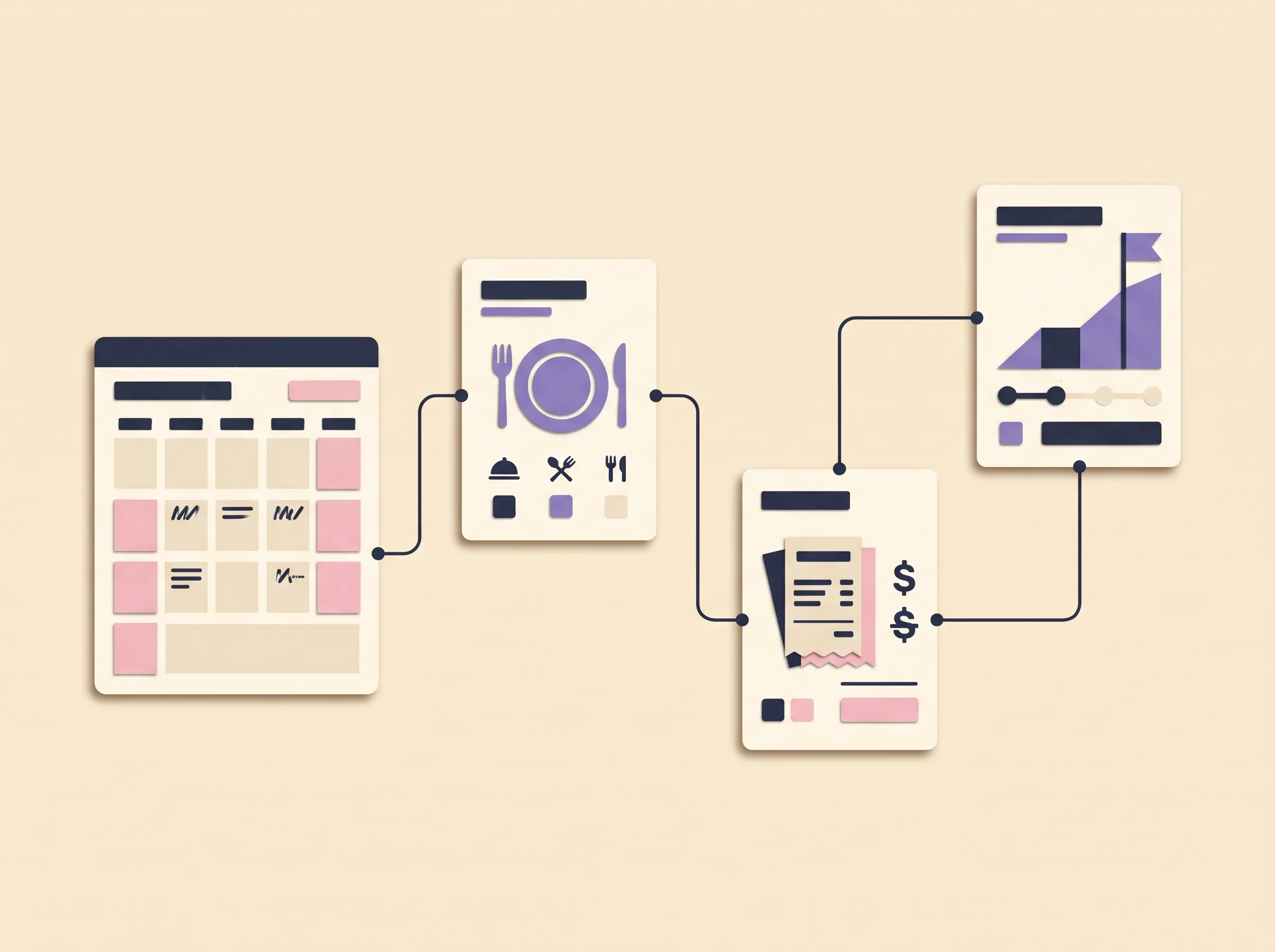
Imagine a weekly review on Sunday. You check the coming appointments, choose a few dinners, note the groceries, look at bills due, and pick one task for a longer-term goal. A useful planner lets you see those next steps in one review. Keep reference notes and receipts in their current homes. Your weekly plan only needs the next steps you will use.
Try a simple map before selecting a template:
| Item | Where it starts | Where you need to see it | Can one entry do both? |
|---|---|---|---|
| Appointment | Shared calendar | On the date, with an alert | Usually keep the calendar as the source |
| Dinner plan | Weekly meal list | During grocery planning | Yes, if the list is beside the meals |
| Recurring bill | Bill or budget log | At review and on its due date | Check whether the file links the views |
| Goal step | Goal list | During the weekly plan | Yes, if the next action is easy to find |
This map makes duplication visible. If you write a bill in three places, decide which one is the record and which are views of it. Google's DATE function can build a date from year, month, and day values, but a formula only helps when you know which source entry it uses.
How do you choose an all-in-one planner?
Choose by the task you want to make easier. A short trial can show whether you will open the planner and whether it reduces repeat entry.
- List your weekly checks. Write down the details you actually look up, such as appointments, errands, meals, bills, or a goal step.
- Mark what needs an alert or another person. Keep those items in a calendar or shared app if the planner cannot handle them.
- Trace one recurring item. Follow a bill or meal from its first entry to every view where you need it. Confirm whether the planner updates those views or expects another entry.
- Try one ordinary week. Enter a few real items and use the system as planned. Note what you forgot to check and what took extra copying.
- Remove sections you do not use. A shorter routine is easier to keep current than a dashboard full of unused categories.
A useful way to test a planner is to follow one recurring item through it. Say you record an internet bill. Does it appear in the budget summary and on the due date? Does the planner send the phone alert you rely on? Keep the bill record in one place and use a calendar for the alert if the planner has no notification feature.
Write down four things before you move more information: where the item starts, which views should show it, whether an alert is needed, and how often you will check it. This small route map shows what belongs in the planner and what should stay in a focused app.
If you are building a calendar in Google Sheets, its date and formula functions can help shape the grid. Microsoft's Excel calendar templates provide a basic layout that you can adapt. A blank template still leaves you to decide how bills, meals, tasks, and goals relate to the calendar.
For another way to compare the formats, see life planner options by format and routine. If your main concern is keeping recurring plans together, this life planner guide walks through that broader choice.
When should you keep separate apps?
Keep a separate app when it does a job your main planner cannot do well. Alerts, invitations, quick phone capture, and shared edits are good reasons to keep a focused tool.
A calendar app can remain the source for appointments. A shared grocery list can be easier to update while shopping. Paper may work better if writing helps you think and you do not need automatic totals. You can still review these tools during one weekly check without copying every detail into a single file.
The trade-off is deciding where the current record lives. Write that rule down in plain language: appointments stay in the calendar; meals stay with the grocery list; bills stay in the budget log. If two tools both look like the source, simplify before adding a new planner.
What matters more than the number of tabs?
The test is whether the planner helps you find the next action without adding more upkeep. A large workbook can still be hard to use, and a short list can be enough if it covers the details you revisit.
Use a small check at the end of the week. Did you know where to put a new item? Could you find it again? Did one entry appear in the views you expected? Did you need to copy it somewhere else? These questions reveal whether the layout fits your routine better than a feature count does.
If the planner is easy to open but difficult to maintain, remove sections or keep a focused app alongside it. Reduce the setup until your weekly check feels manageable.
Why Trust This Article
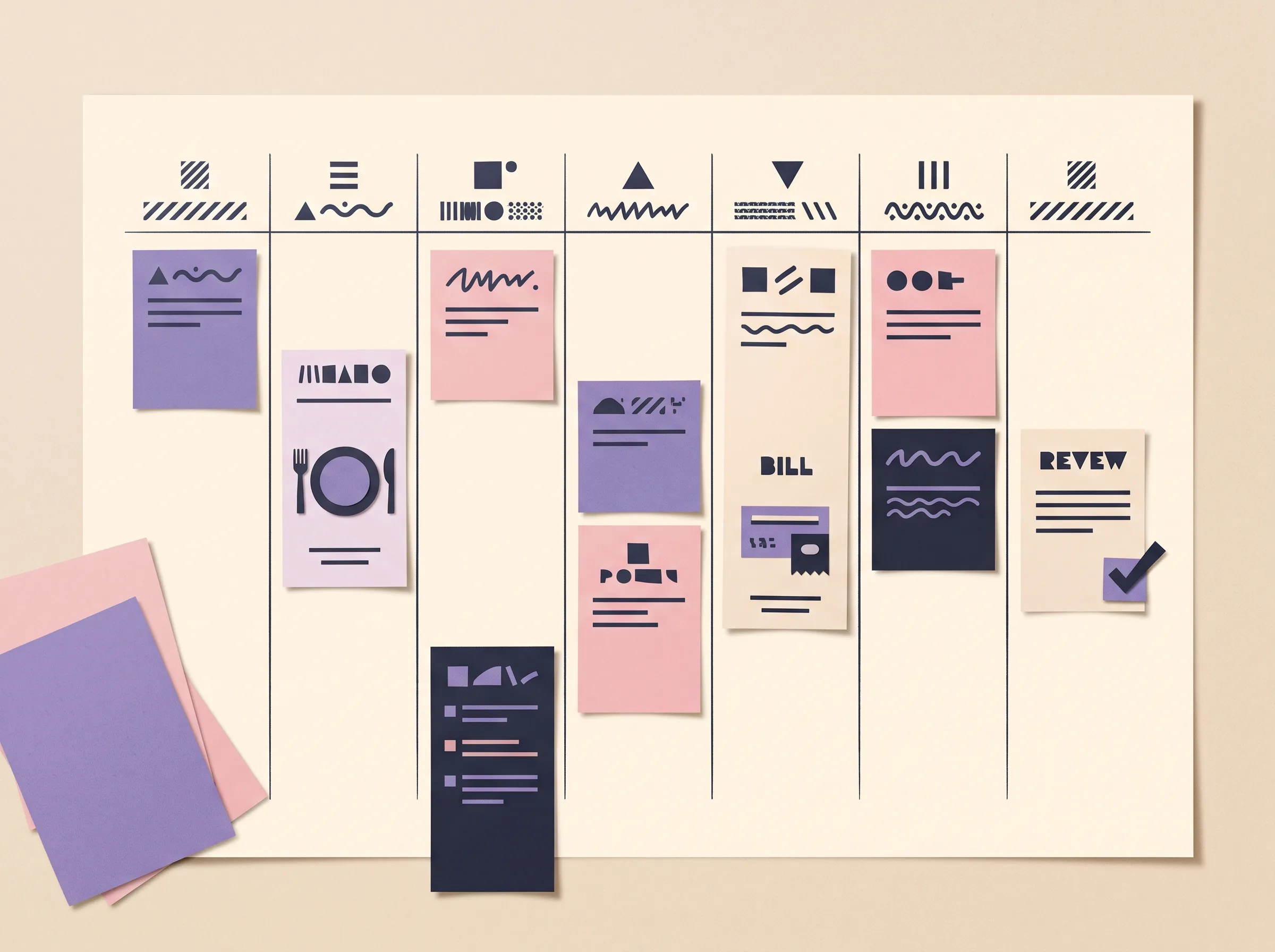
This guide describes format choices and links to official Google and Microsoft documentation for spreadsheet behavior and calendar templates, checked on 5 November 2026. Its weekly map is an illustrative planning aid, not a user study or a product test. Read more about Cosmo Suite and see how we make and review content in the editorial policy. The examples are meant to help you check your own setup.
Where the Ultimate Life Organizer Fits
The Ultimate Life Organizer from ultimatelifeplanner.site is a ready-made bundle with three spreadsheets containing 60 tabs and one Notion Life OS template for planning, goals, and wellness. The spreadsheets cover budgets, habits, and tasks. The current price is $9 once, with no subscription.
The bundle may suit you if you want prepared sections across several areas and prefer Excel or Google Sheets. You still need to check whether the included format matches your routine. It does not provide a mobile app, bank sync, or phone alerts, so keep a calendar app when you rely on notifications.
You can review the ready-made planner for several life areas against the map above. If you already know a spreadsheet fits, see the included planning and tracking sections. Compare the tabs you will check with the details you currently maintain.
Frequently asked questions
What should an all-in-one planner include?
Include the details you check often, such as dates, tasks, bills, meals, or goals. You do not need a section for every part of life. Start with the items you currently update in more than one place, then add another area only if you will review it.
Is an all-in-one planner better than separate apps?
It depends on what you need. One planner can make recurring categories easier to review together. Separate apps can be better for phone alerts, shared calendars, or quick capture. Keep a separate tool when it has a job your main planner does not handle well.
Can a spreadsheet work as an all-in-one planner?
Yes, if you are comfortable keeping a file current and the tabs fit the way you plan. A spreadsheet can group lists, calendars, and trackers. Check how entries move between its views, and keep a calendar app for alerts you need on your phone.
Is an all-in-one planner the same as a life planner?
The terms overlap. An all-in-one planner usually means one place for several planning jobs. A life planner can describe the same idea or a specific paper, app, or spreadsheet product. Check the format and included sections instead of relying on the label.
How do I start using an all-in-one planner?
Choose one weekly routine and enter only the details you already maintain. Review it once at the end of the week. If the same item still needs to be copied into several places, simplify the setup before adding more sections.
Can I use an all-in-one planner with a calendar app?
Yes. Many people keep appointments and alerts in a calendar app, then use a planner for tasks, meals, bills, or goals. Decide which tool owns each kind of information so you know where to update it.
Sources
Keep reading
Choose Your Planner
Life Planners That Actually Get Used (Matched to How Many Apps You Juggle)
Life planner options compared: paper, separate apps, Notion and a spreadsheet, with what each costs over three years and which one you'll keep opening.
· 9 min read
Choose Your Planner
6 Best Life Planners Worth Trying in 2026, by Format and Real Cost
Best life planner picks for 2026: Erin Condren, Passion Planner, Notion, apps, Google Sheets and a $9 file, with prices checked 8 Oct 2026 and who each suits.
· 9 min read
Choose Your Planner
What a Life Organizer Should Hold, and How to Pick One
Life organizer choices include paper, apps, and spreadsheets. Use this checklist to choose what to track, where to keep it, and how to keep it current.
· 8 min read
