Best Digital Planners That Actually Stick (Matched to Your Device)
Best digital planner options compared: iPad PDF notebooks, calendar apps, and connected spreadsheets, with a simple way to pick the right fit.
By Ultimate Life Organizer by Cosmo Suite · Editorial policy
Published · 8 min read
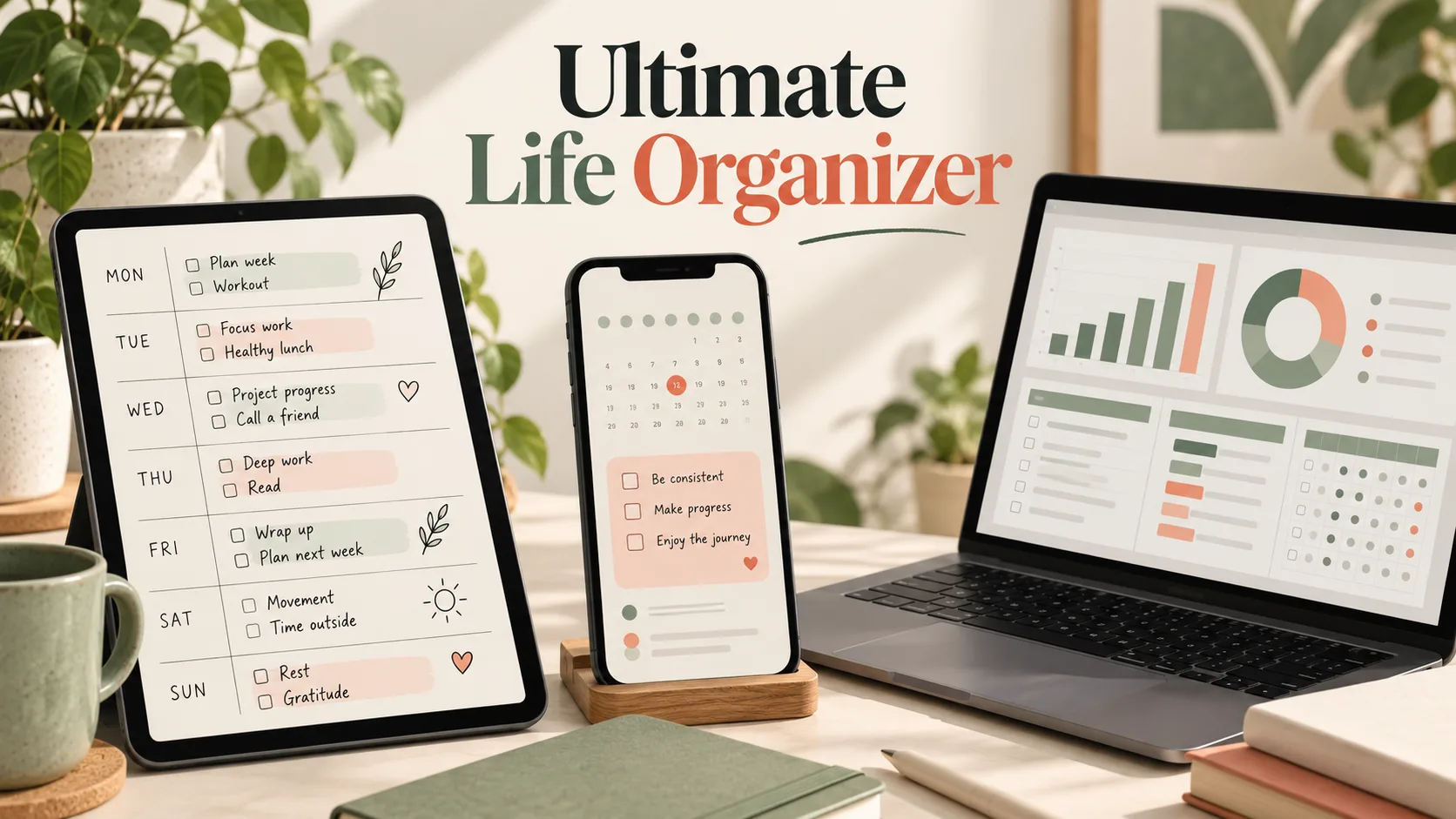
A digital planner can mean a PDF you write on, an app that reminds you, or a spreadsheet that keeps several parts of life together. The best digital planner is the one that matches what you need to do and the device you already reach for.
Quick answer: choose a PDF notebook if handwriting helps you think, a calendar app if alerts and shared events matter, and a connected spreadsheet if you want bills, tasks, meals, habits, and goals in one place. For a broader comparison of formats, see these life planner options before you compare brands.
At a glance
- Tablet and stylus, mostly writing: choose a PDF notebook such as Goodnotes.
- Phone, reminders, shared schedule: choose a calendar or task app.
- Repeating life admin in several categories: choose a spreadsheet or ready-made workbook.
- Not sure: test one week before migrating everything.
Best Digital Planners at a Glance
The quick choice depends on how you interact with the plan. This table compares common digital formats by their strongest job and the friction to check before you commit.
| Format | Good fit when | Check before choosing |
|---|---|---|
| PDF planner in a note app | You write by hand on a tablet | Navigation and dated page setup |
| Calendar or task app | You need alerts, sharing, or quick phone entry | Which jobs need separate apps |
| Spreadsheet template | You want categories and totals together | Screen size and setup effort |
| Ready-made spreadsheet | You want connected tabs without building them | Compatibility and included features |
A digital planner can combine formats. Some people write their day in a notebook and keep appointments in a calendar. Decide which information needs to live together and which needs an alert.
What counts as a digital planner?
A digital planner is a digital system you use to plan time or work. The label covers several formats. A PDF notebook gives you pages to write on. A calendar app stores events. A spreadsheet can organize recurring information across tabs. Those formats do not behave the same way, even if each is sold as a planner.
A notebook-style planner usually works like a paper book on a tablet. You write, highlight, and move between pages. Goodnotes lists templates and digital stationery among its plan features, with plan limits and availability that vary. Check the current Goodnotes plans and pricing and its plan feature comparison before paying, since the options can change.
Calendar tools put dates and events first. On iPhone, Apple says Calendar can show scheduled Reminders and lets you create reminders with dates and optional times. That can suit errands or appointments where a timely alert matters. See Apple's Calendar reminder guide and event setup instructions.
A spreadsheet gives you rows, categories, formulas, and linked tabs. Google Sheets is a general spreadsheet, so you can build a planner there, but the structure is yours to set up. A ready-made workbook can save that construction work if its layout fits your routine. You can also compare a Google Sheets planner template with a paper or app setup.
Which digital planner fits your device and habits?
Start with the device and action you already use. If you reach for a stylus, a PDF is easy to pick up. If you check your phone for appointments, a calendar app fits that routine. If you review bills, goals, and meals together each week, a spreadsheet may keep those records in one view.
PDF planner: best for handwriting on a tablet
A PDF planner is a good fit when writing by hand helps you think and your tablet is already part of your day. A note-taking app can hold the planner pages beside meeting notes, sketches, or marked-up documents. Goodnotes' official plan comparison lists notebook and template features, while access and limits depend on the selected plan.
What you give up: reminders and automatic totals are not the main job of a PDF notebook. You may need to write the same appointment into a calendar or calculate totals elsewhere. A tablet planner can feel close to paper, but it still needs a device, an app, and a page structure you like.
Best for: people who plan by writing and want a portable notebook with reusable pages.
Calendar and task apps: best for alerts and shared events
A calendar app fits when dates, notifications, and other people's schedules matter most. Apple's Calendar can display reminders, while calendar services let you manage events against a date and time. These tools are built for the moment a task is due or a meeting changes.
What you give up: a calendar may not be the place you want to maintain a detailed budget, meal plan, habit log, and longer-term goals. Many people pair a calendar with separate task or finance apps. That can be a sensible setup when each app has a clear job, but it means checking more than one place.
Best for: phone-first planners who need reminders, event invitations, or a shared household calendar.
Spreadsheet planner: best for categories and totals
A spreadsheet works when you want information grouped into categories and summarized. You can track a budget, recurring bills, habits, tasks, and goals in tabs, then review them in the same file. Google Sheets supports spreadsheet creation and sharing, as described in Google Sheets Help; the planner layout and formulas still need to come from you or a template.
What you give up: spreadsheets need setup and can feel cramped on a phone. A blank file leaves decisions about tabs, dates, and formulas to you. Start with a small system and check each formula before relying on a total. For a wider look at how a life planner holds several categories together, see the full format comparison.
Best for: people who like reviewing categories together and do not need every action to trigger a phone alert.
Ready-made workbook: best for less setup
A ready-made planner workbook gives you a defined structure. The Ultimate Life Organizer from ultimatelifeplanner.site is a four-spreadsheet bundle for Excel and Google Sheets, with 70+ tabs across budgeting, habits, life planning, and tasks. Its contents include a dashboard, recurring transaction logs, monthly and weekly calendars, a meal planner, and goal tracking. It does not include a mobile app, bank sync, or push notifications.
What you give up: you work inside the included file structure and should confirm it suits your preferred spreadsheet app. The workbook is not a substitute for a phone reminder system. If you need alerts as the main feature, keep a calendar app for that job.
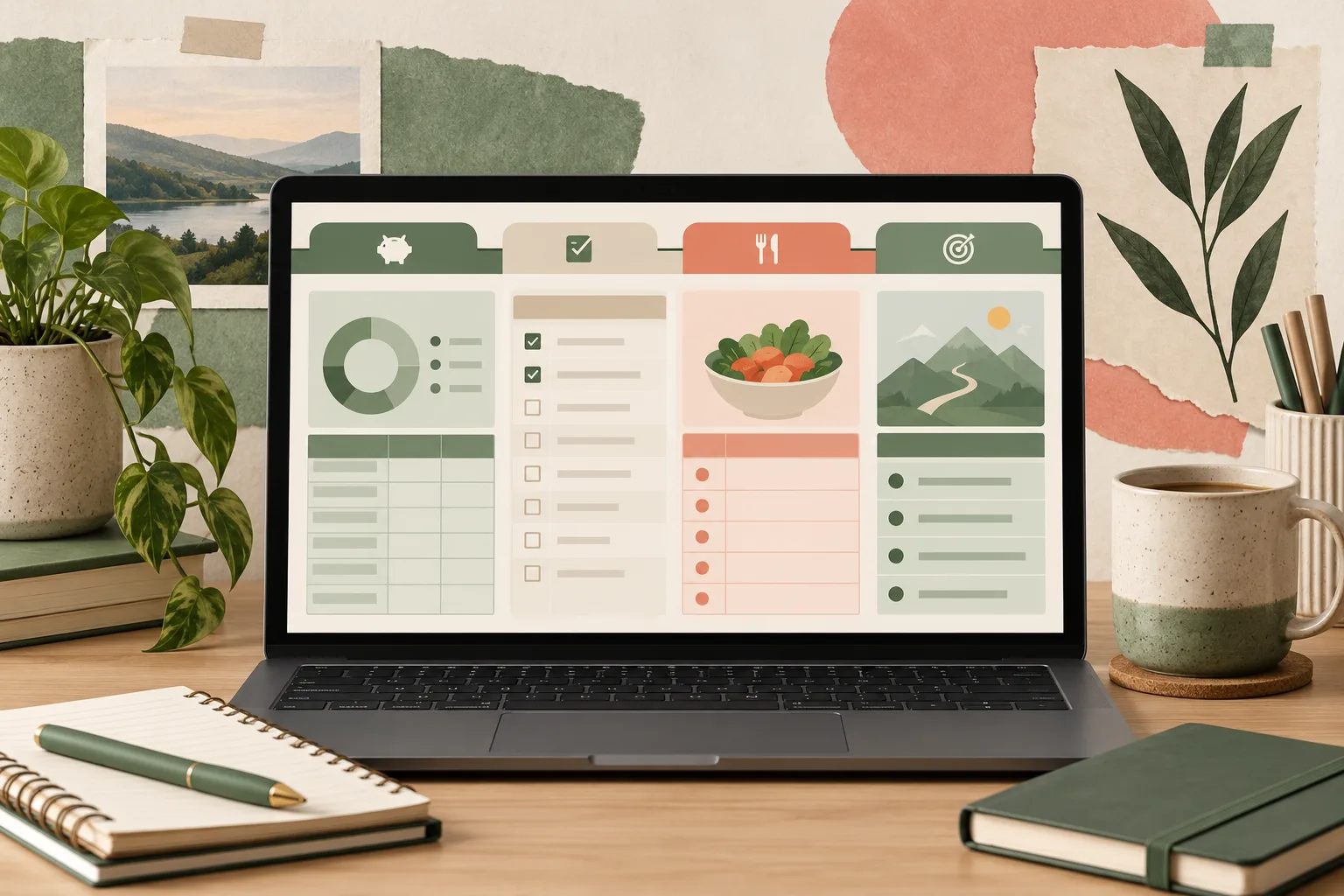
Best for: people who want several life-admin categories connected in a workbook and would rather start from a structure than build one from scratch.
How do you choose without buying the wrong format?
Score the format against the work you actually do, not a feature list. Use 0 for absent, 1 for possible with extra steps, and 2 for a natural fit. This is a quick decision aid, not a tested product ranking.
| Need | PDF notebook | Calendar app | Spreadsheet |
|---|---|---|---|
| Handwritten notes | 2 | 0 | 0 |
| Date alerts | 0 | 2 | 0 |
| Categories and totals | 0 | 1 | 2 |
| Several life areas in one view | 1 | 1 | 2 |
| Quick phone entry | 1 | 2 | 1 |
Add the scores for your three most important needs. Treat the result as a prompt, not a verdict. A tie means you may need two tools with separate jobs, such as a calendar for appointments and a spreadsheet for weekly planning.
Then run a one-week open-once check. Add three real items: an appointment, a recurring bill or task, and one goal step. Use the planner for seven days. Notice whether you remember where to check, how long setup takes, and which entries you had to duplicate. If the new format adds more upkeep than it removes, scale back before moving the rest of your life into it.
What makes a digital planner usable after setup?
A planner lasts when its regular update is short and the next action is easy to find. A beautiful cover cannot compensate for a system that asks you to maintain the same bill in three places. Give each tool one job, and decide where an item lives before you create it.
For example, keep an appointment in the calendar because it needs a date alert. Keep the recurring bill and monthly budget together if you want to compare planned spending with actual spending. Put the grocery list next to the meal plan if you use both during the same weekly review. This division reduces duplicate entry without forcing every detail into one screen.
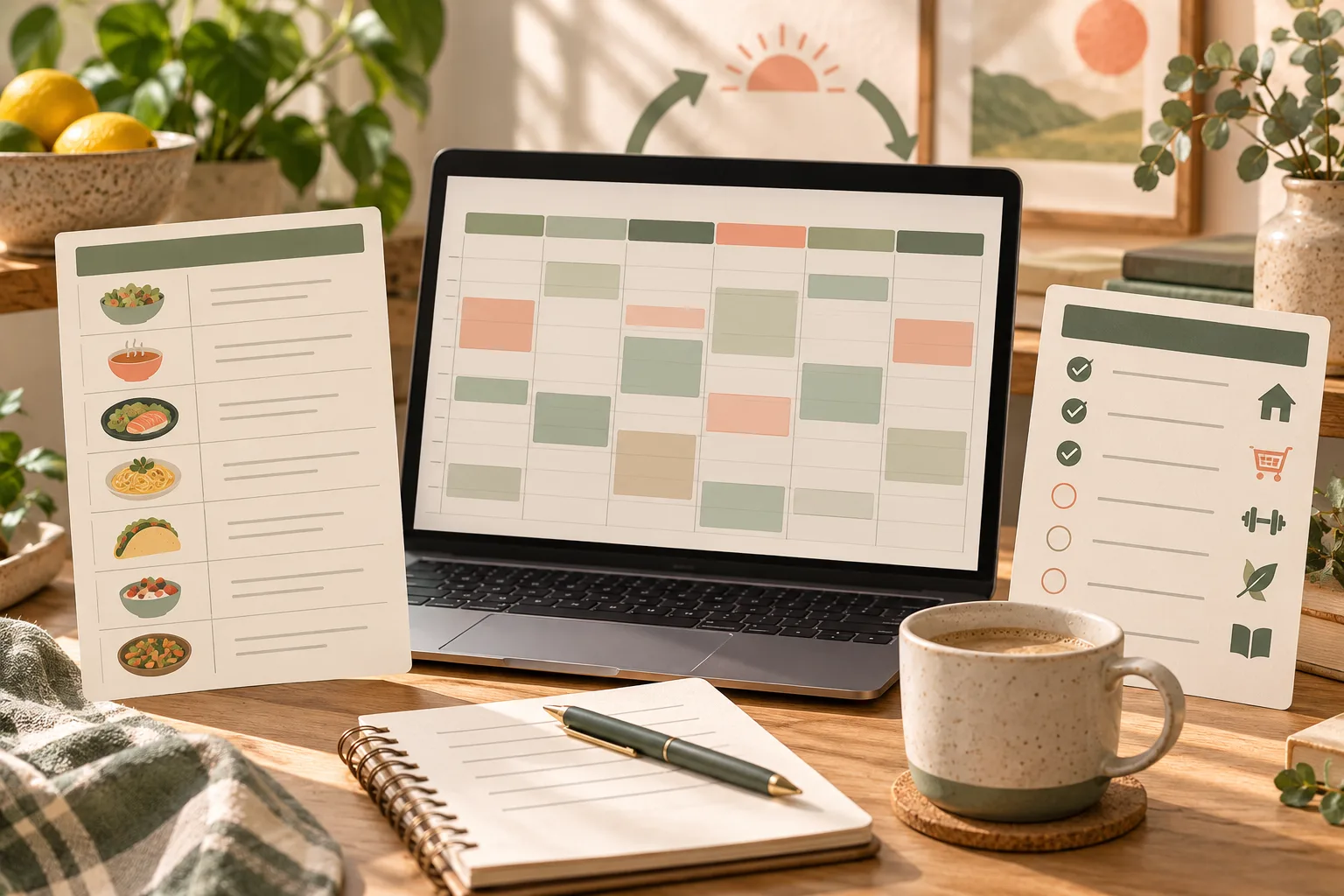
A weekly reset can be simple: check next week's calendar, list the tasks that need a date, choose a few meals, and review one goal. Then decide which format should sit at the center.
Why Trust This Article
This guide compares formats using each provider’s published product information, checked on 1 November 2026. The scorecard is an editorial decision aid, not a lab test or a survey. Product details for the Ultimate Life Organizer are checked against its contents list. Read the editorial policy, about page, or contact page to learn how this site handles sources and corrections.
Where the Ultimate Life Organizer Fits
The Ultimate Life Organizer fits the spreadsheet route. Its bundle includes four files for Excel and Google Sheets: a Budget Planner, Annual Habit Tracker, Life Planner, and Task Tracker. The dashboard covers finance, organization, and wellness. The contents also include recurring transaction logs, calendars, meals and groceries, goal steps, and a task dashboard.
That combination can help if you want a weekly view across money, tasks, meals, and habits, and you are comfortable opening a spreadsheet.
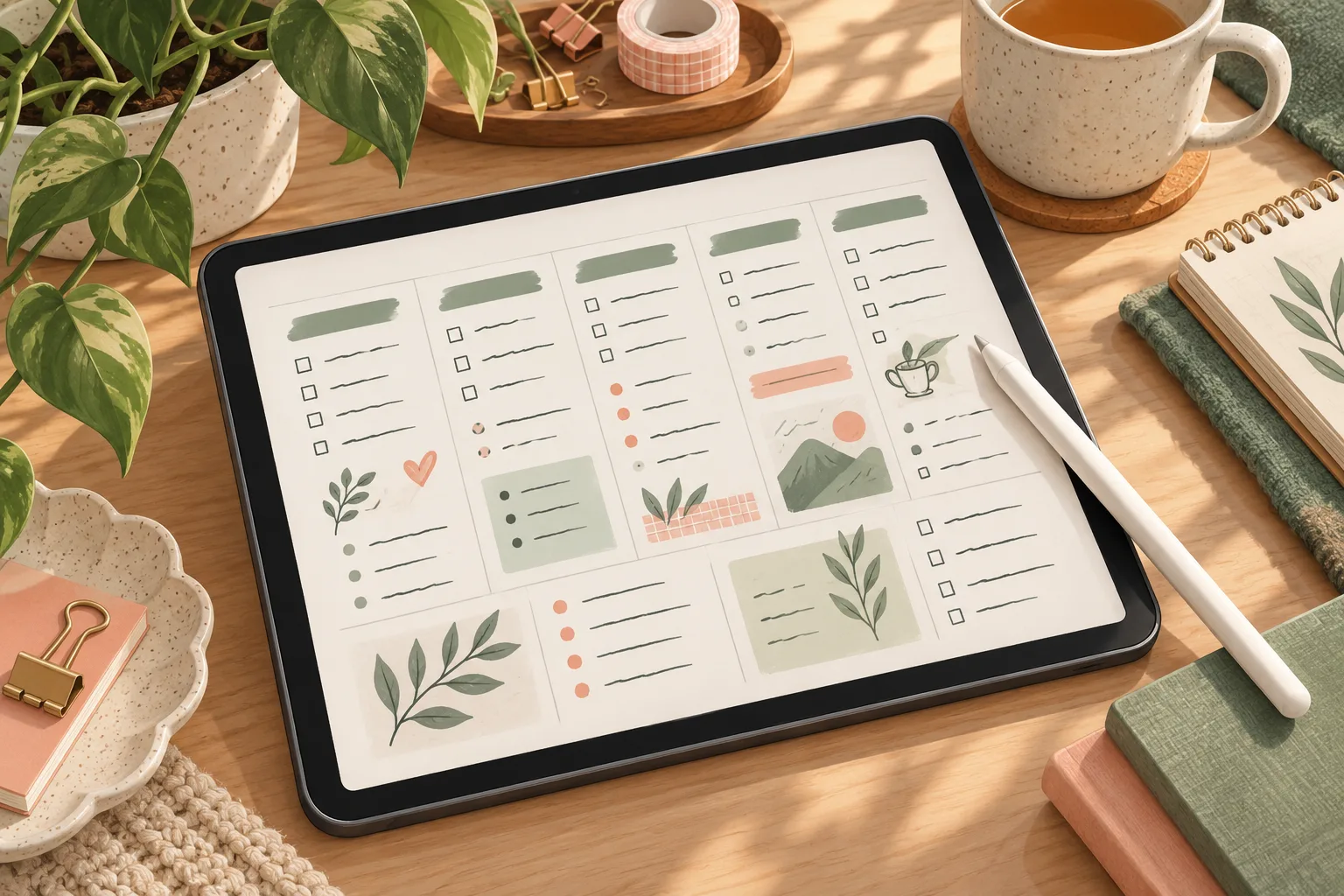
You can see the Ultimate Life Organizer workbook contents before deciding whether its layout matches your routine. It is a one-time file purchase, reusable each year, with a step-by-step YouTube tutorial. It does not send mobile alerts, connect to a bank, or replace a calendar app for shared events.
If those limits fit, the ready-made life planner workbook gives you a prebuilt starting point. Keep your calendar app for reminders if you use them. Make the weekly review easier to maintain. Let separate tools keep the jobs they handle well.
Frequently asked questions
What is the best digital planner overall?
Choose by the job you need done. A PDF planner in Goodnotes suits handwriting on a tablet. A calendar app suits reminders and shared events. A spreadsheet suits recurring categories such as bills, habits, meals, and goals that you want to review together.
Are digital planners worth paying for?
They can be, if the format saves setup or helps you keep using the plan. Free calendar and spreadsheet tools work for many people. A paid PDF, app, or ready-made file can save time, but check device support and recurring costs before buying.
Is Goodnotes a digital planner?
Yes. Goodnotes supports digital notebooks and templates, so you can write on planner pages with a compatible device. It is a strong fit for handwriting and annotation. It does not replace a reminder-first calendar for every task. Check its current plan limits and platform support before choosing.
Can I use a digital planner on my phone?
Usually, but the experience depends on the format. Calendar apps are built for quick phone access. A PDF planner may be easier to write in on a tablet. A spreadsheet can open on a phone, though a wide workbook may be more comfortable on a larger screen.
What is the difference between a planner app and a digital planner?
A planner app is software that stores schedules or tasks and may send alerts or share calendars. Digital planner can also mean a PDF notebook used with a stylus, or a spreadsheet template. The label alone does not tell you which features are included.
How do I know if a digital planner will last?
Try one ordinary week before moving everything into it. Add a few real tasks, one recurring item, and next week's plan. If updating it takes longer than the old system or you forget where to look, reduce the setup or choose a format you already open.
Sources
Keep reading
Choose Your Planner
Life Planners That Actually Get Used (Matched to How Many Apps You Juggle)
Life planner options compared: paper, separate apps, Notion and a spreadsheet, with what each costs over three years and which one you'll keep opening.
· 9 min read
Choose Your Planner
6 Best Life Planners Worth Trying in 2026, by Format and Real Cost
Best life planner picks for 2026: Erin Condren, Passion Planner, Notion, apps, Google Sheets and a $9 file, with prices checked 8 Oct 2026 and who each suits.
· 9 min read
Choose Your Planner
What a Life Organizer Should Hold, and How to Pick One
Life organizer choices include paper, apps, and spreadsheets. Use this checklist to choose what to track, where to keep it, and how to keep it current.
· 8 min read
