How to Make a Calendar in Google Sheets That Updates
How to make a calendar in Google Sheets: set up a month grid, add dates with simple formulas, and format it for events. Change the month without rebuilding it.
By Ultimate Life Organizer by Cosmo Suite · Editorial policy
Published · 8 min read
To make a calendar in Google Sheets, start with a seven-column month grid and let formulas place the dates. A spreadsheet calendar is a month view built from date cells arranged in a grid. Keep the year and month in two input cells, so you can change the month without rebuilding the calendar.
Use this month view for personal or household appointments, deadlines, and plans. Google Calendar is better for event reminders and shared invitations. Keep the sheet for the broader plan. Choose a date format and note field before adding events. Consistent formatting helps prevent ambiguity when comparing adjacent weeks.
If you want a connected file with an auto-fill calendar already included, the Ultimate Life Organizer from ultimatelifeplanner.site is one option.
At a glance
- Make one six-week grid with seven columns.
- Use
DATEandWEEKDAYto calculate the first visible date. - Put event details in a separate list if you need to sort or filter them.
- Use conditional formatting to distinguish dates from the previous or next month.
Google Sheets Calendar at a Glance
Pick a template when its layout already suits you. Build the grid yourself when you want to choose the week start or keep the layout simple. Check that the template has enough event space for your needs.
| Option | Good fit when | Tradeoff |
|---|---|---|
| Google Template Gallery | A ready-made layout already fits | Available choices can vary by account |
| Six-week formula grid | You want one month that updates from two inputs | You set up the layout and formatting |
| Google Calendar | You need invitations, shared calendars, or reminders | It is a different tool from a spreadsheet |
For the formula grid, make cells for a year and month, place weekday names across seven columns, and fill six rows of dates.
What should you set up before making the calendar?
Start with a blank Google Sheet, then choose the first day of the week and the date format you want to read. These two choices determine the headers and formula you use, so decide before filling the grid and enter the inputs first.
In cell A1, type Year; in B1, enter a year such as 2026. In A2, type Month; in B2, enter a number from 1 to 12. These are the only cells you need to change each month to keep the formulas simple.
In row 4, add seven weekday headings. For a Sunday-start calendar, enter Sunday through Saturday from A4 to G4. For a Monday-start calendar, enter Monday through Sunday. Keep the date grid below the headings.
Google Sheets stores dates as values and displays them according to the sheet's formatting and locale. If a date appears in an unexpected order, select the grid and use Format → Number to choose a date display. The locale also affects which date styles appear in the menu.
If you prefer a template, open the Google Sheets home screen and select Template Gallery. Google's template instructions explain how to open a copy of a Google-created template. The gallery may not show the exact calendar layout you want, so use the formula method when you need a custom month grid.
How do you make the monthly calendar grid?
Use the first date formula to find the Sunday or Monday at the start of the visible grid. In some months, the first row starts before the month begins. Keeping those dates visible gives every row a full week.
For a Sunday-start calendar, put this formula in A5:
=DATE($B$1,$B$2,1)-WEEKDAY(DATE($B$1,$B$2,1),1)+1
The DATE parts create the first day of the chosen month. Google defines DATE as converting a year, month, and day into a date value in its DATE function reference. WEEKDAY(...,1) numbers Sunday as 1, Monday as 2, through Saturday as 7. Subtracting that weekday position and adding 1 moves the result back to the Sunday that starts the week. Google documents the numbering options in its WEEKDAY function reference.
You can check the formula with September 2026. Put 2026 in B1 and 9 in B2; A5 returns August 30, a Sunday. B5 is August 31, and C5 is September 1. The first week now shows exactly how the grid carries dates across a month boundary.
For a Monday-start calendar, replace the formula's 1 after WEEKDAY with 2. That numbering starts with Monday as 1, so the first grid cell becomes the Monday on or before the first day of the month.
In B5, enter =A5+1. Drag the fill handle across to G5, then select A5:G5 and drag the fill handle down through row 10. You now have 42 consecutive date cells, enough for a month that spans six calendar weeks.
Select A5:G10 and choose Format → Number → Custom date and time. Pick a short day format such as d if you want each cell to show only the day number. The underlying values remain full dates, which matters if you later sort or compare them. Google's date-formatting help describes the number-format menu and custom date options.
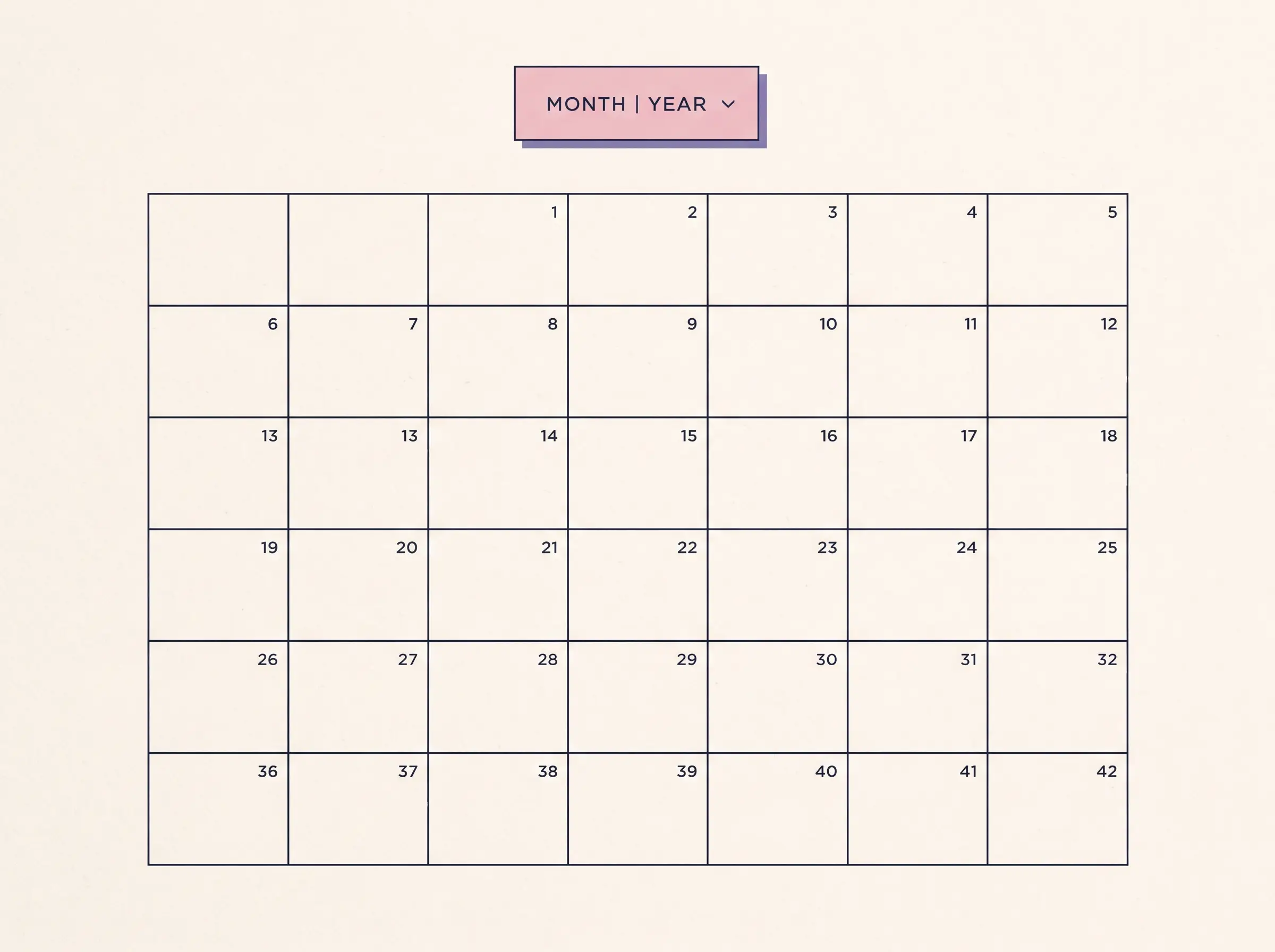
Change B1 or B2 to check that the dates move. For example, if you set the month to 12, the same formula grid rolls to December without replacing the cells. The weekday headings stay fixed while the dates update.
How do you make dates outside the month easier to scan?
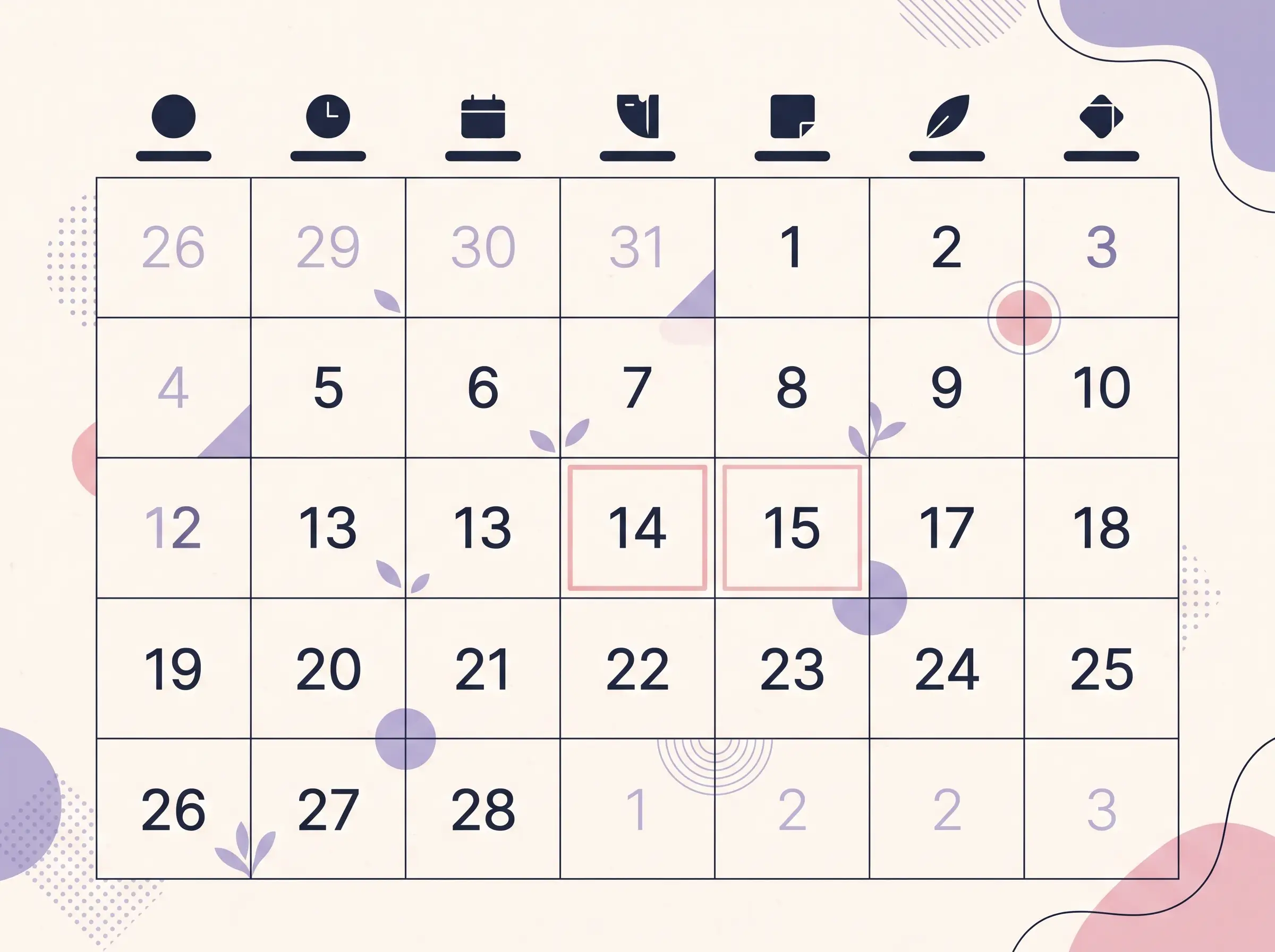
Use conditional formatting to show adjacent-month dates in a lighter style. The dates remain visible, so a week that crosses a month boundary still reads from Sunday to Saturday, but the selected month stands out.
Select A5:G10, choose Format → Conditional formatting, and add a custom formula rule:
=MONTH(A5)<>$B$2
Choose a light text color or subtle fill. Since the rule applies to the full grid, the reference A5 should be relative and $B$2 should stay fixed. Google explains how custom formulas and absolute references work in its conditional formatting guide.
You can add a second rule to highlight today:
=A5=TODAY()
Use a border or a single accent color so this marker does not compete with event labels. If you prefer to hide adjacent-month numbers entirely, you can wrap each date cell in an IF formula. The dimmed-date method is easier to maintain because each cell keeps its date value.
Where should you put events?
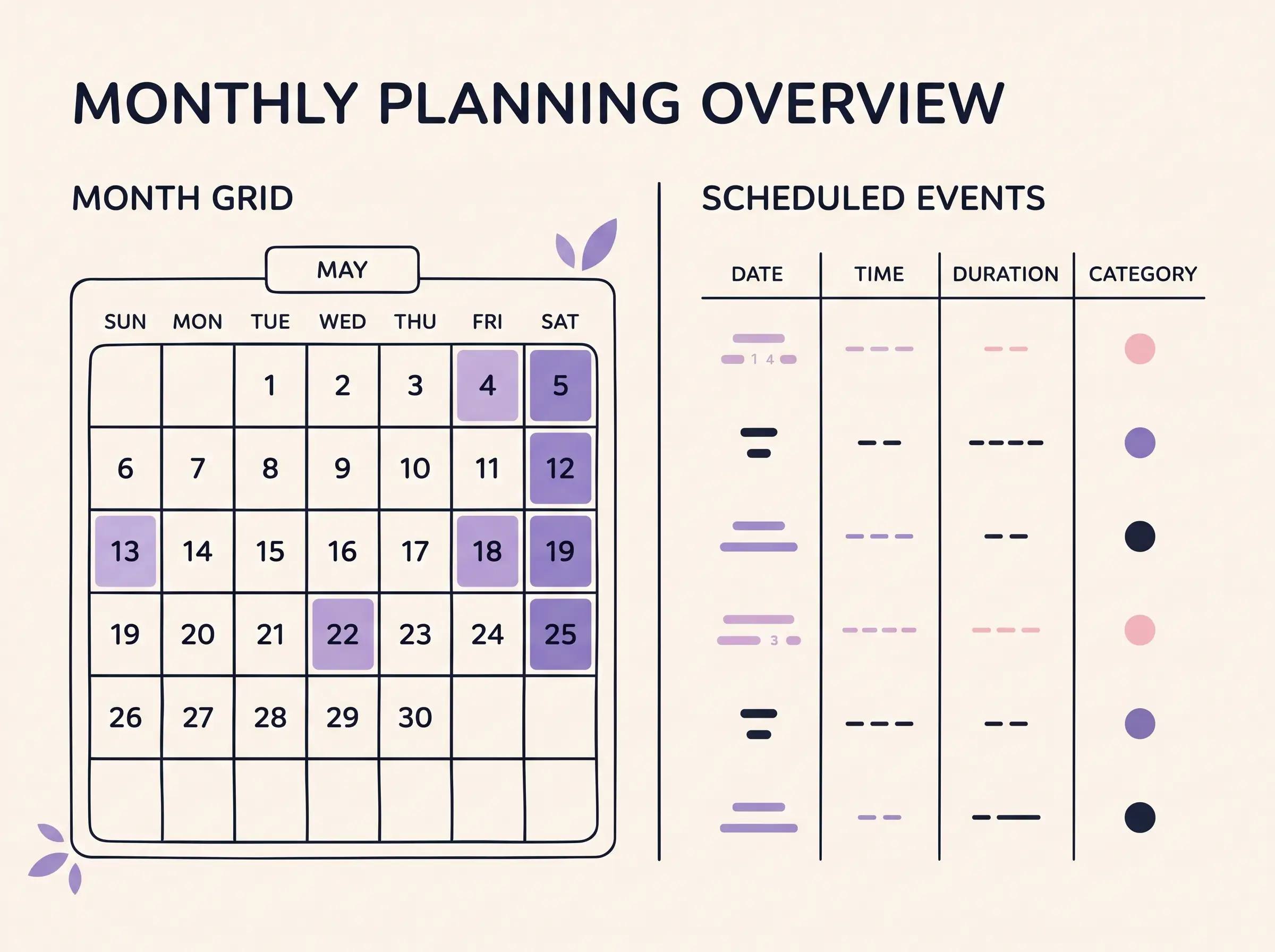
Use the calendar grid for the shape of the month and a separate event list for details you may need to search. A list stays easier to sort than notes typed into calendar cells, especially when several events share one date.
On a second tab named Events, add columns for Date, Event, Type, and Done. Enter each date as a date value, not as text. Select the header row and choose View → Freeze → 1 row so the column names remain visible as the list grows. You can also add a filter to narrow the list by date or type, following Google's sort and filter steps.
To make the list easier to read, use a short event name and put any location or extra detail in another column. You can add a dropdown in the Type column for a few categories you actually use. Avoid making a category for every possibility. The point is to find an entry again without maintaining a miniature database.
Write event names directly in the day cells when you only need a visual monthly plan. Use the Events tab when you expect to filter, sort, or reuse entries. Google Calendar handles shared invitations and alerts. The Google Sheets planner template guide shows another way to organize connected tabs when one calendar view is not enough.
What should you check when the dates look wrong?
Most date problems come from the start-day choice, the formula fill, or the way the sheet displays dates. Check those in order before rebuilding the grid.
| What you see | Check | Fix |
|---|---|---|
| The first weekday is off by one | Sunday versus Monday start | Use WEEKDAY(...,1) for Sunday or WEEKDAY(...,2) for Monday |
| All cells show the same date | The formula was copied without a relative reference | Make sure each next cell adds 1 to the cell before it |
| Dates look like large numbers | Number format | Select the grid and choose a date format under Format → Number |
| Day and month appear swapped | Sheet locale | Check the spreadsheet locale and pick a matching date display |
| The grid stops before month end | Only five rows were filled | Fill six rows, from row 5 through row 10 |
| Formula is rejected | Locale or punctuation | Check whether your locale expects semicolons between formula arguments |
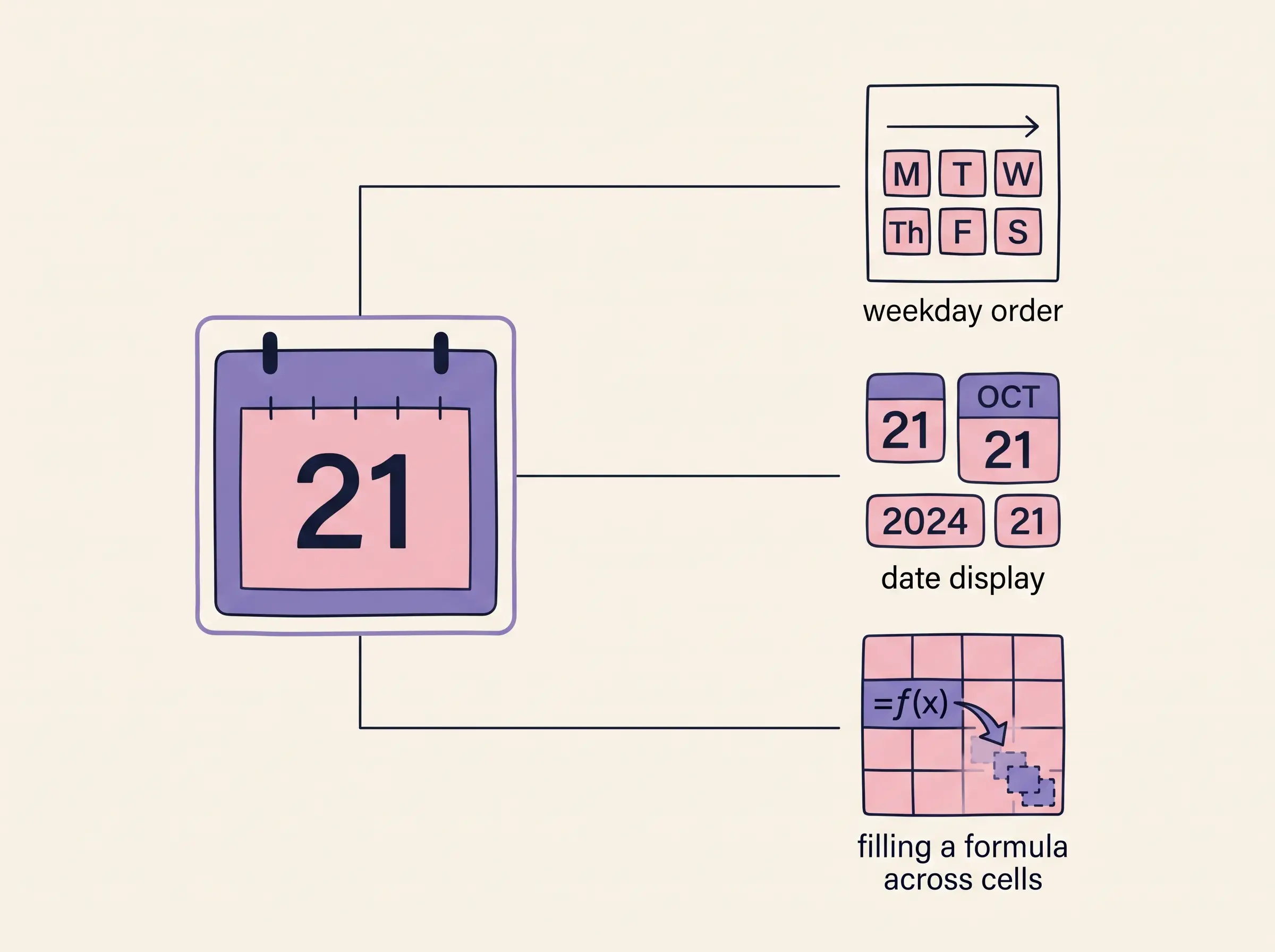
Keep dates as values produced by a formula or entered as dates. Applying a number format changes how a value appears; it does not turn the date into text. If you type a date as text, calculations and sorting can behave differently.
What makes a calendar useful after you build it?
A calendar is easier to keep when each piece has one job. Let the grid answer “what does this month look like?” Let the Events tab answer “what is happening on this date?” Keep recurring household or work items in the list and change only the month selector when you review the schedule.
You can connect the month view to other planning habits without making it the place for every note. A short weekly check lets you move unfinished items, add known dates, and remove plans that no longer matter. If you keep a wider life planner in one place, link to it from the sheet rather than copy the same information into several tabs. A ready-made file with an auto-fill calendar is also available in the Ultimate Life Organizer.
Why Trust This Article
This site publishes spreadsheet planning guides and sells the Ultimate Life Organizer by Cosmo Suite (ultimatelifeplanner.site). This walkthrough uses Google's help pages for date functions, templates, formatting, and filters. Read more about our publishing team and editorial policy.
Where the Ultimate Life Organizer Fits
If you want a ready-made file instead of building the tabs yourself, the Ultimate Life Organizer from ultimatelifeplanner.site includes the All-in-One Life Planner 2.0, with a monthly and weekly auto-fill calendar, a life dashboard, and other planning tabs. It is a one-time $9 purchase, and you can use the files in Excel or Google Sheets.
If you enjoy building your own sheet, the steps above are enough to get a useful month view. If you need phone reminders or shared calendar invitations, Google Calendar is the better fit.
Frequently asked questions
Can Google Sheets make a calendar that changes by month?
Yes. Put a year and month in input cells, then use DATE and WEEKDAY to calculate the first visible date. Fill the rest of the grid by adding one day to the previous cell.
Does Google Sheets have a calendar template?
Google Sheets offers a Template Gallery of Google-created templates, though the choices can vary by account. If none fits, you can build a six-week date grid from a blank sheet.
How do I make Monday the first day of the week?
Put Monday first in the weekday header and use WEEKDAY(date,2) in the first-date formula. Type 2 counts Monday as 1 and Sunday as 7.
Why does my Google Sheets calendar show dates from another month?
A fixed six-week calendar often includes a few days before or after the selected month so every week stays in place. Use conditional formatting to make those dates lighter, or hide them with a formula.
Can a Google Sheets calendar send reminders?
A sheet works for seeing dates and notes. Google Calendar is a better choice when you need invitations, shared scheduling, or event notifications.
Can I make a yearly calendar in Google Sheets?
Yes. Make twelve month grids that use the same year input and a different month number. For a simpler view, keep one month grid and change its month input as needed.
