Life Planner Template: The Sections Worth Keeping, With a Copyable Layout
Life planner template layout for year, month, and week. Copy the fields, keep recurring items in one place, and use a short review to keep plans current.
By Ultimate Life Organizer by Cosmo Suite · Editorial policy
Published · 8 min read
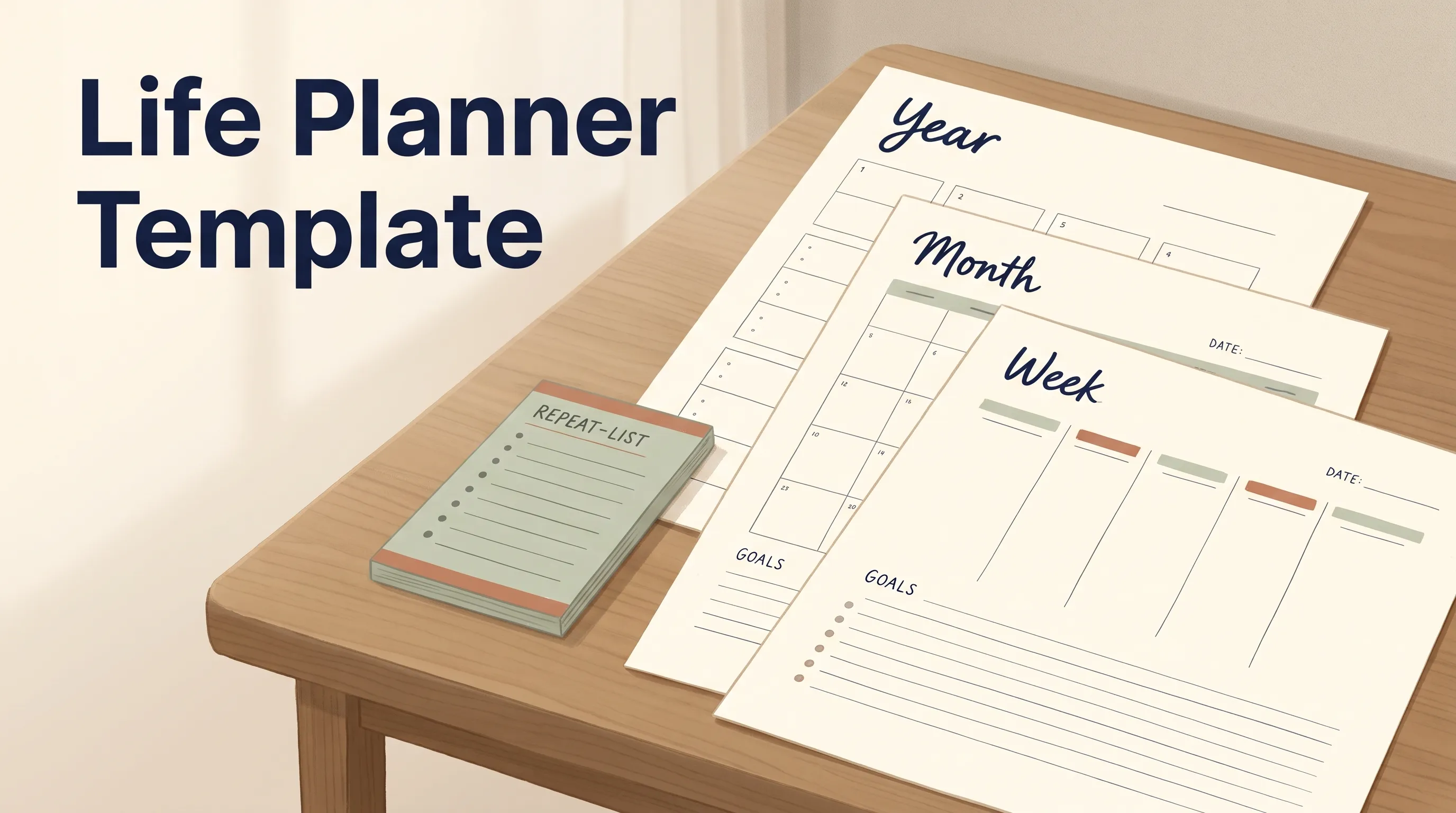
An overbuilt life planner template can become another thing to maintain. Start with the views you check: year, month, and week. Add a separate page only for a part of life that needs its own place.
Give each time span one job. Use the year page for direction, the month page for commitments and progress, and the week page for next actions. Store repeat entries once, then show them where you need them. The Ultimate Life Organizer keeps several life-planning tools together in one download. A notebook or blank file may suit you better if you want to build the layout yourself.
Key takeaways
- Start with year, month, and week views. Add trackers only when you will review them.
- Give each repeated item one home, then link or carry it into the view where you need it.
- Test the layout for a week before spending time decorating or expanding it.
Life Planner Template Sections at a Glance
A life planner template works when every page answers a different question. The year view holds direction. The month view helps you choose what gets attention. The week view turns those choices into actions.
| Page | Main question | Useful fields | Review point |
|---|---|---|---|
| Year | What do I want to make room for? | Areas to maintain, a few outcomes, dates that matter | When the year changes or priorities shift |
| Month | What needs attention this month? | Priorities, appointments, due dates, carry-forward list | Near month end |
| Week | What will I do next? | Fixed commitments, next actions, meals or errands | Before the week starts |
| Repeat list | What happens again? | Item, frequency, next date, status | When an item changes |
| Notes | What should I remember? | Short notes with a date or related area | When sorting the next month |
Place the repeat list where you will find it. In a notebook, it can sit on the inside cover. In a spreadsheet, it can be its own tab. Keep each recurring item in one home, then bring only its next date into the year, month, or week view.
A life planner template is a reusable set of pages or tabs for organizing dates, next actions, and personal records. A useful version lets you move from a broad plan to a specific week without copying every detail. That handoff is the part to check before you choose a design.
Use a copy budget to compare layouts: count how often you must re-enter one item as it moves from page to page. A date can appear in several views if it comes from one record. With paper, that may mean copying only the next due date. With a spreadsheet, keep a single list and show its next dates elsewhere.
Google's help page shows how to open a copy of a template from its gallery. Microsoft explains how an Excel workbook can be saved as a template for new workbooks. Those features help you reuse a starting layout; your fields and review routine still need to fit your life. See Google's template instructions and Microsoft's Excel template steps.
The Bureau of Labor Statistics reports that 80.9% of people ages 15 and older did some household activity on an average day in 2025, including housework, cooking, lawn care, or household management. A planner cannot remove those chores. It can keep dates, errands, and repeat tasks together. The BLS tables explain what its time-use measure includes.
What Goes on the Year Page?
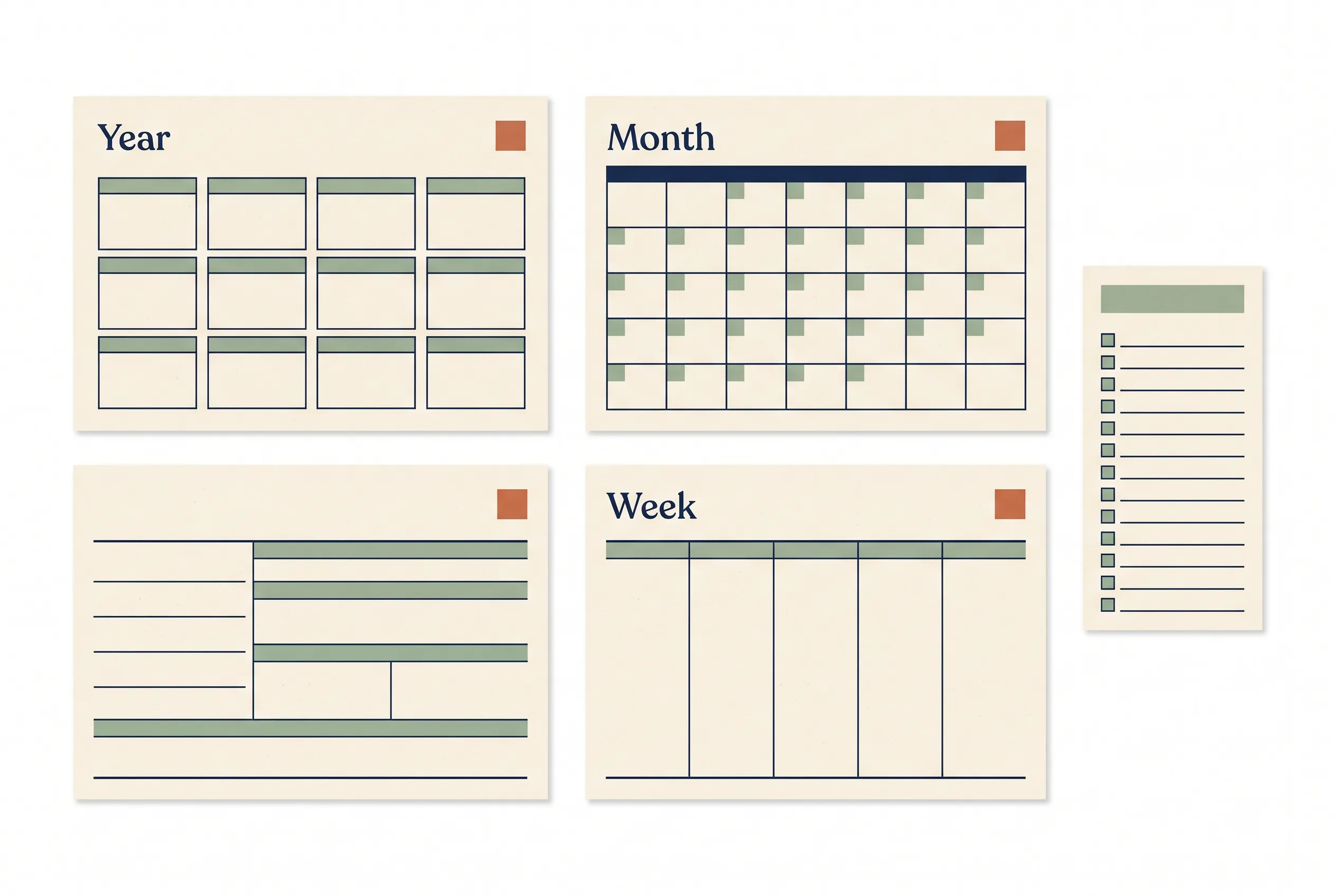
Use the year page for a few outcomes and dates that help you set priorities. Keep it as a reference. Move details to the month or week when the year view gets hard to scan.
Try these fields:
- Areas to maintain: home, health, money, relationships, or another area that matters to you.
- A few outcomes: write what you would like to be different by year end. Keep the wording specific enough to review.
- Known dates: renewals, travel, school terms, annual appointments, and other commitments you already know.
- Seasonal notes: a short reminder of work that returns at a predictable time.
- Review prompt: “What should stay, change, or wait?”
Someone planning a move might add “choose a neighborhood” as an outcome, then schedule research and visits on later month pages. Calls, viewings, and packing tasks belong in the month or week where they can be acted on.
If a goal needs a next step, move it to the month when you expect to act. Keep an unknown date as a note instead of giving it a deadline you may not meet.
What Belongs on the Month Page?
Use the month page to connect broad priorities with the next few weeks. Put appointments and deadlines beside the work you want to move forward, then choose what fits.
Useful fields include:
- Month and year.
- Fixed dates and appointments.
- One or two priorities per area you are actively tending.
- Bills, renewals, or household items due this month.
- A list of tasks carried from last month, with a choice to keep, reschedule, or drop each one.
- A short note for what worked and what needs to change.
Keep the month view light enough to make choices. For each unfinished task, ask whether it still matters and whether this is the month to act. Remove it from the active list if the answer is no.
You can make a calendar grid the main view, or use a dated list if many items have specific due dates. If you use a digital calendar for appointments, let that remain the source for alerts. Your planner can hold the wider monthly picture without becoming a second calendar that needs duplicate edits.
How Do You Turn the Month Into a Useful Week?
Use the week page to decide what is realistic for the next several days. Start with fixed commitments, add a few next actions from the month, and leave room for routine life.
Try a three-column layout:
| Fixed | Next actions | Keep in view |
|---|---|---|
| Appointments and due dates | Tasks that can be completed this week | Groceries, meals, or a household reminder |
Add a small “waiting for” line for anything that depends on another person or a delivery. This keeps a delayed item visible without pretending you can finish it today. At the end of the week, move only unfinished tasks that still matter.
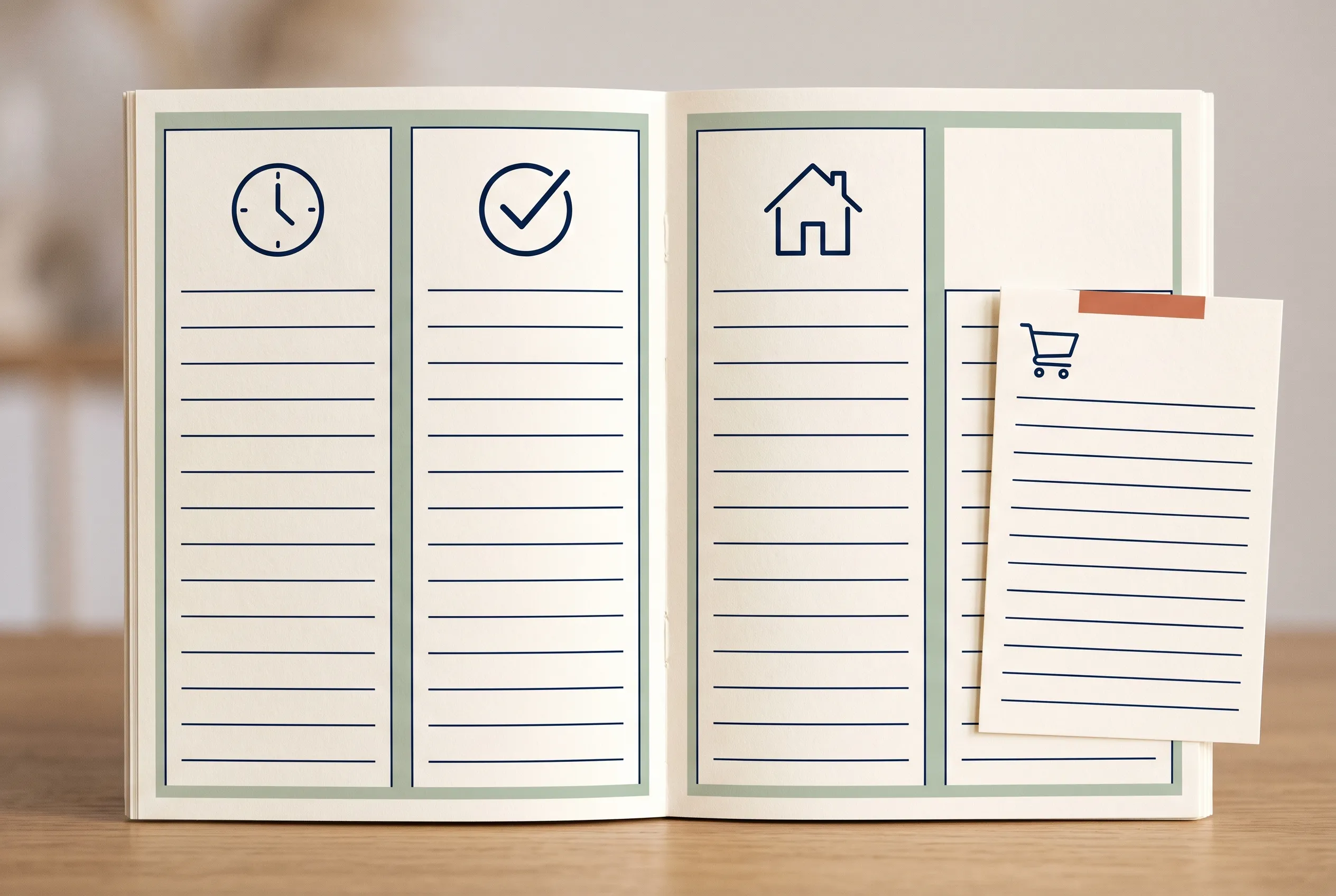
Put the meal plan beside the grocery list if you use both. Keep habit entries brief, perhaps a checkbox or a short note. A Google Sheets planner layout can connect calendar, tasks, and other tabs if you prefer updating a grid to separate pages.
How Should You Handle Repeating Items?
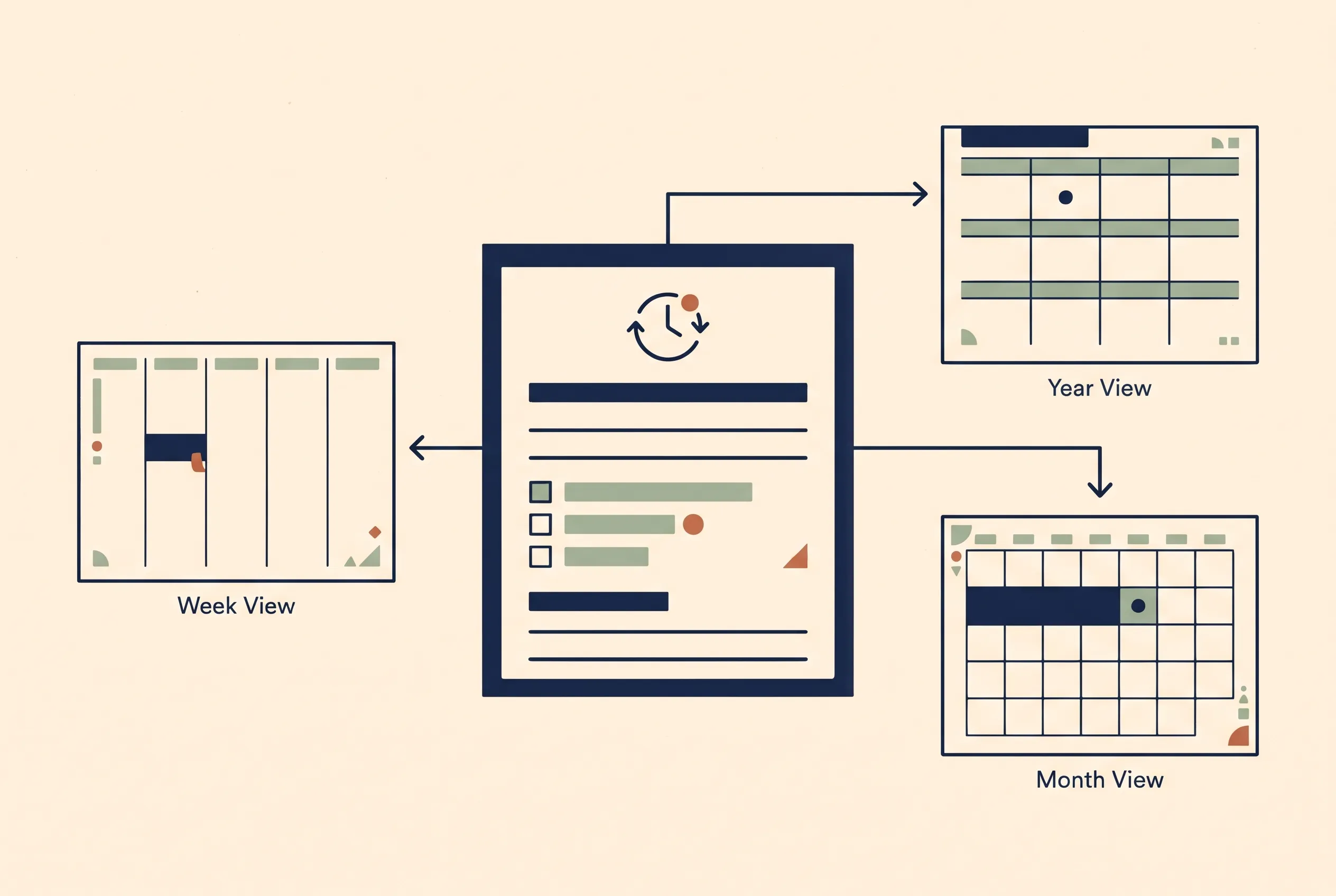
Keep repeating items in one list and show the next due date in the current month or week. That way you can start a fresh page without rewriting the whole schedule.
Use fields such as:
| Item | Frequency | Next date | Where it appears | Status |
|---|---|---|---|---|
| Rent | Monthly | First due date | Month and week | Planned / paid |
| Phone appointment | As booked | Confirmed date | Week | Planned / done |
| Grocery restock | Weekly | Next shop | Week | Planned / done |
These are sample rows to show the structure, not records from a real household. Replace them with the items you actually need. For a paper planner, copy only the upcoming dates into the next page. In a spreadsheet, use a single source list and add a formula only if you can maintain it.
If a recurring bill changes, update its source list and check the next date in your current view. Do not keep a second “backup” version on another page. A duplicate makes it harder to know which one is current.
Consider this fictional example: a renter is reviewing a phone plan. The year page says “review phone plan before renewal.” The month page holds the renewal month and a reminder to compare the current bill with alternatives. The week page gets one action: “check plan details.” After the decision, update the monthly amount and next review date in the repeat list. The task appears across three views, while its source record stays in one place.
The renter may decide to keep the current plan. They can mark the task done, leave the recurring record as it is, and remove the old reminder. The decision has an end point, so it will not be carried into every new week.
How Do You Keep the Template From Getting Too Big?
Start with a few useful pages. Add a section when you can name the question it answers and when you will review it. A tracker with no review point can turn into a blank page.
Use this quick check before adding a section:
- What will I enter here?
- When will I look at it again?
- Does the same information already live somewhere else?
- What decision will this page help me make?
Skip the section if you cannot answer the second or fourth question. When the information already exists, link to it or show it as a view of the same record. That keeps a deadline from being re-entered on a wall calendar, phone, and planner.
Test the pages before choosing colors, stickers, or a permanent layout. Use plain headings for one week. Notice which fields you ignored and which details were hard to find, then revise the page.
Where the Ultimate Life Organizer Fits
The Ultimate Life Organizer by Cosmo Suite is a ready-made option for people who want budget, habit, task, and planning tools in one download. It includes a Budget Planner, Habit Tracker, and Task Tracker in Excel and Google Sheets, plus Notion Life OS. The current product information lists a $9 one-time price and no subscription.
This setup covers more than the year/month/week layout in this guide. Choose it if you want existing trackers and dashboards assembled for you. A notebook or blank spreadsheet fits better if you want to choose every field or only need one weekly page. The bundle does not send phone reminders. Keep a calendar or alert app for time-sensitive notifications.
For the ready-made version, see what comes with the Ultimate Life Organizer. For a wider comparison of paper, apps, Notion, and spreadsheets, read the life planner format guide.
Why Trust This Article
Ultimate Life Organizer by Cosmo Suite is made by the team that publishes the planner linked above, so our perspective favors spreadsheet planning. The page structure works on paper, in a spreadsheet, or in another format. Product details follow the published contents. The repeat-list examples are fictional.
We checked the help pages and the BLS 2025 American Time Use Survey on 8 November 2026. Read our about page and editorial policy to learn how the site prepares its articles.
Frequently asked questions
What should a life planner template include?
Start with a year overview, monthly priorities, a weekly plan, and a short review. Add sections for money, meals, habits, and household tasks only when you will use them. Each section should have a clear place for dates, next actions, and items that repeat.
How do I make a life planner template?
Choose the format you already open, then make a year page, a month page, and a week page. Give each one a few fields for priorities, dates, next actions, and notes. Try the layout for one week before adding more trackers.
Is a life planner template better on paper or in a spreadsheet?
Paper suits people who think by writing and want a page they can carry. A spreadsheet suits people who want to sort entries or keep recurring items in one file. Choose the format that fits how you already plan.
Can I use a life planner template in Google Sheets or Excel?
Yes. You can build a simple layout in either spreadsheet. Google Sheets and Excel also provide ways to start from templates. Check formulas, print layout, and date behavior before relying on a converted workbook.
How often should I update a life planner?
Review the week once before it starts, then adjust only when plans change. Review the month near its end and carry forward unfinished items that still matter. Repeating bills and appointments should be stored once if your format supports it.
How many sections should my life planner have?
Use the fewest sections that cover the parts of life you plan in that format. A year, month, and week view are a useful base. Add money, meals, habits, or household pages when they answer a question you check regularly.
Sources
Keep reading
Planner Templates
Google Sheets Planner Template: 8 Tabs Worth Copying, With a Real 60-Tab Example
A Google Sheets planner template is only useful if its tabs feed each other. See 8 tabs worth copying, how they link, and a real 60-tab Sheets and Excel bundle.
· 8 min read
Planner Templates
Life Dashboard: What It Is and the One Thing That Makes It Work
Life dashboard explained: which tiles earn a place on it, which tab feeds each tile, and how a single entry per item keeps the screen current.
· 9 min read
